User Interface
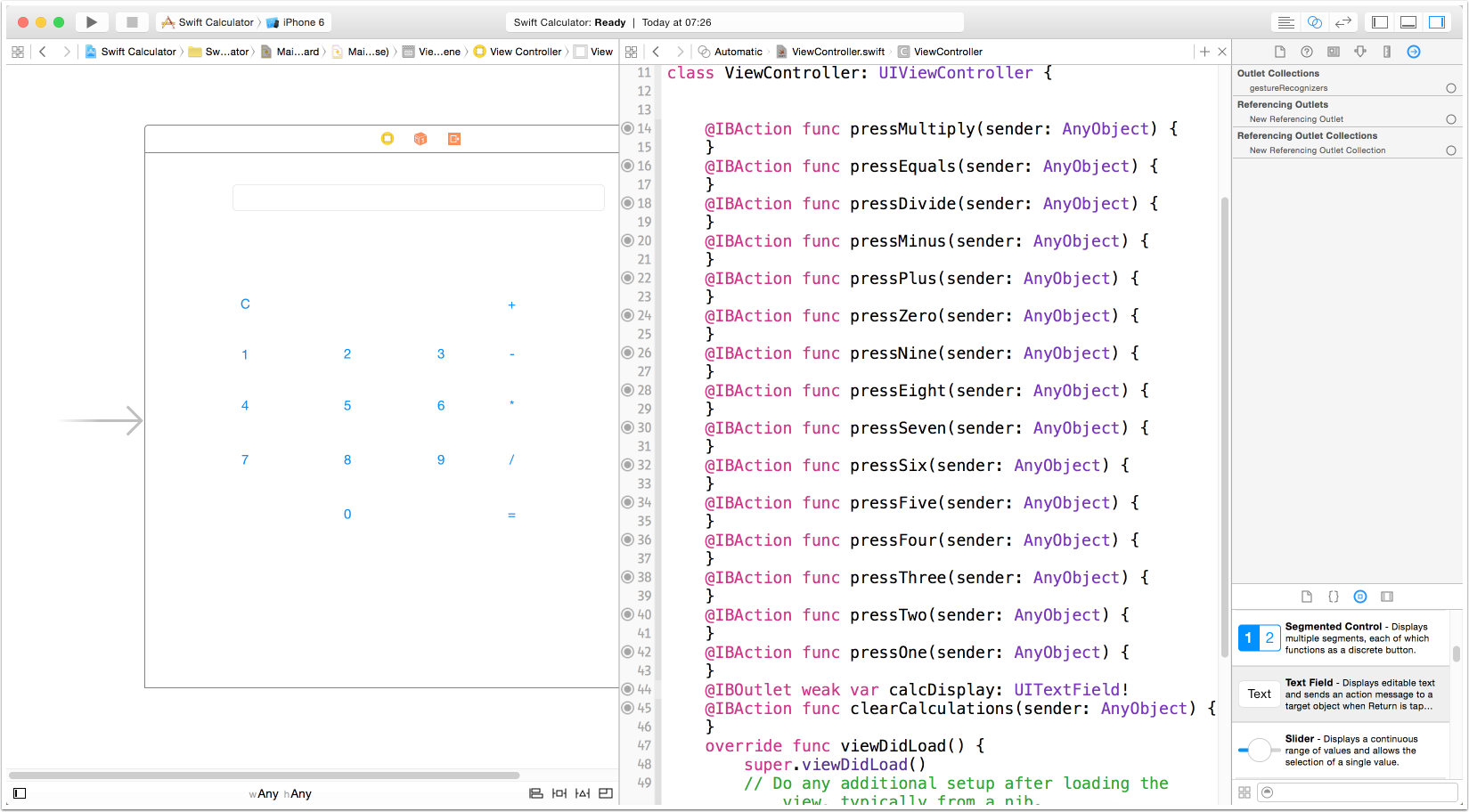
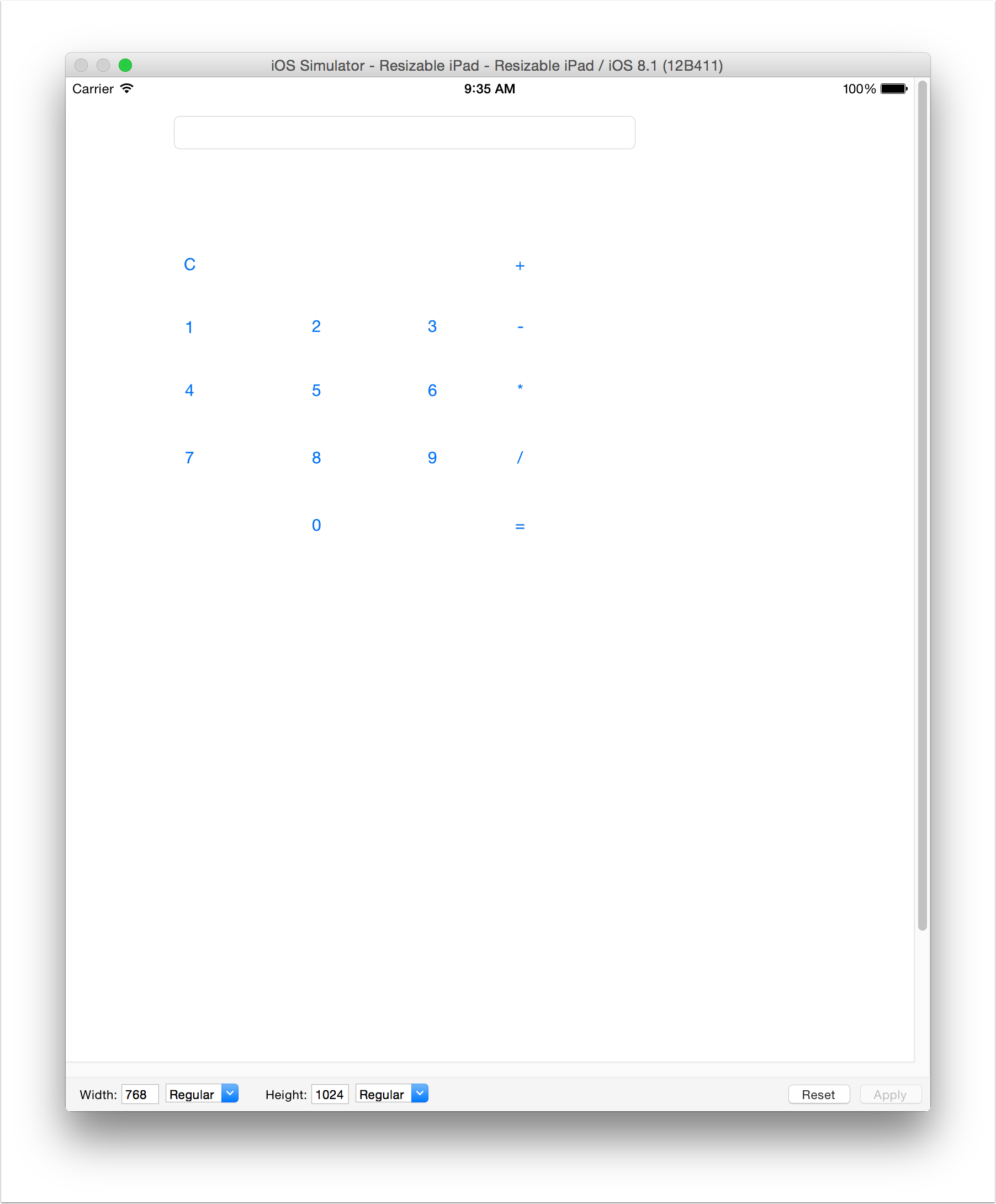
In this section, you'll be designing the user interface (UI) so that the calculator looks similar this.
In this tutorial, you will be concentrating on creating the interface for an iPad to utilise the extra screen space. You will be able to easily extend this app by using Auto Layout to adapt the screen for an iPhone 4/5/6/6+.
Open the storyboard
Open the Main.storyboard file.

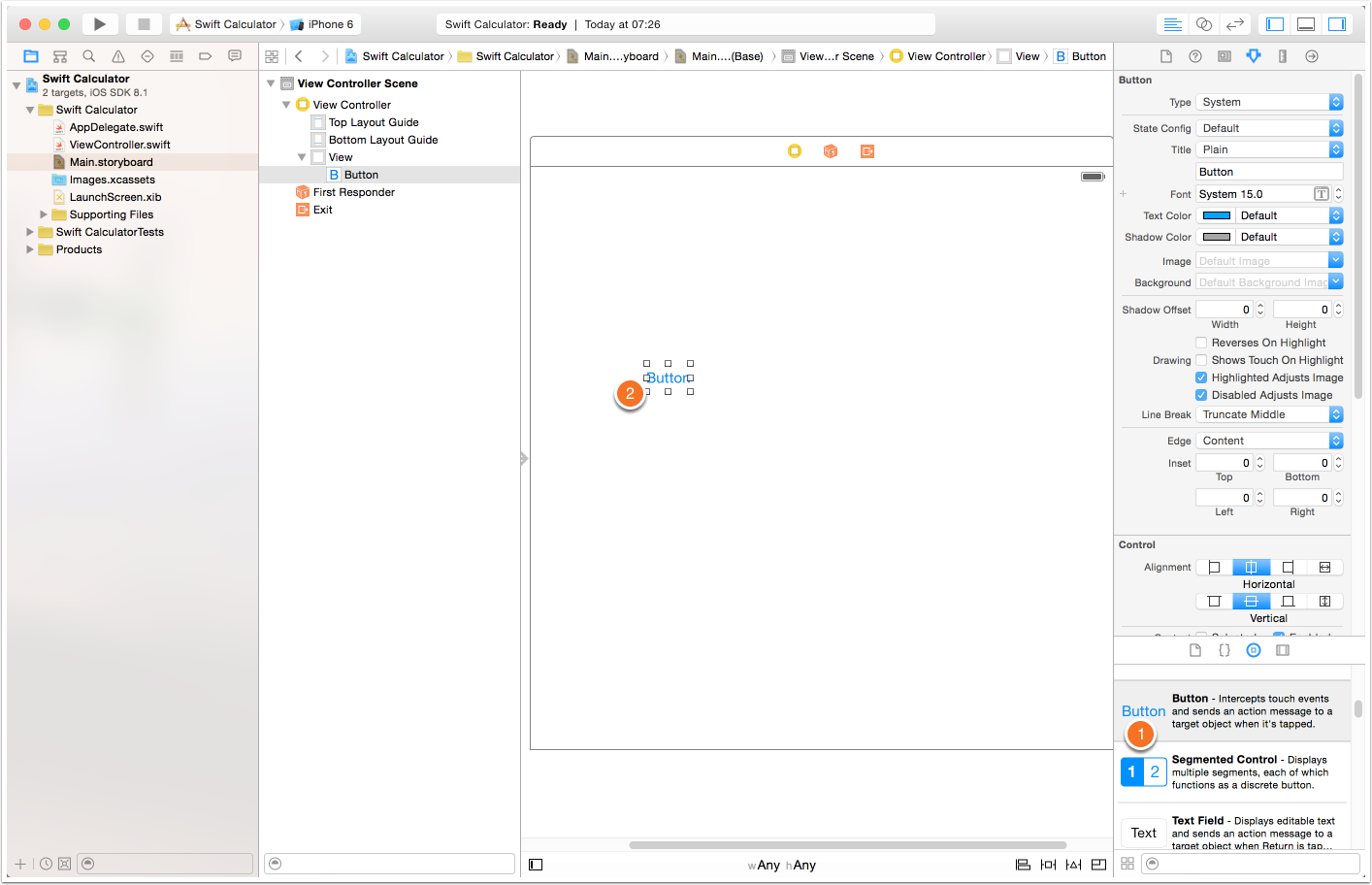
Drag out a button
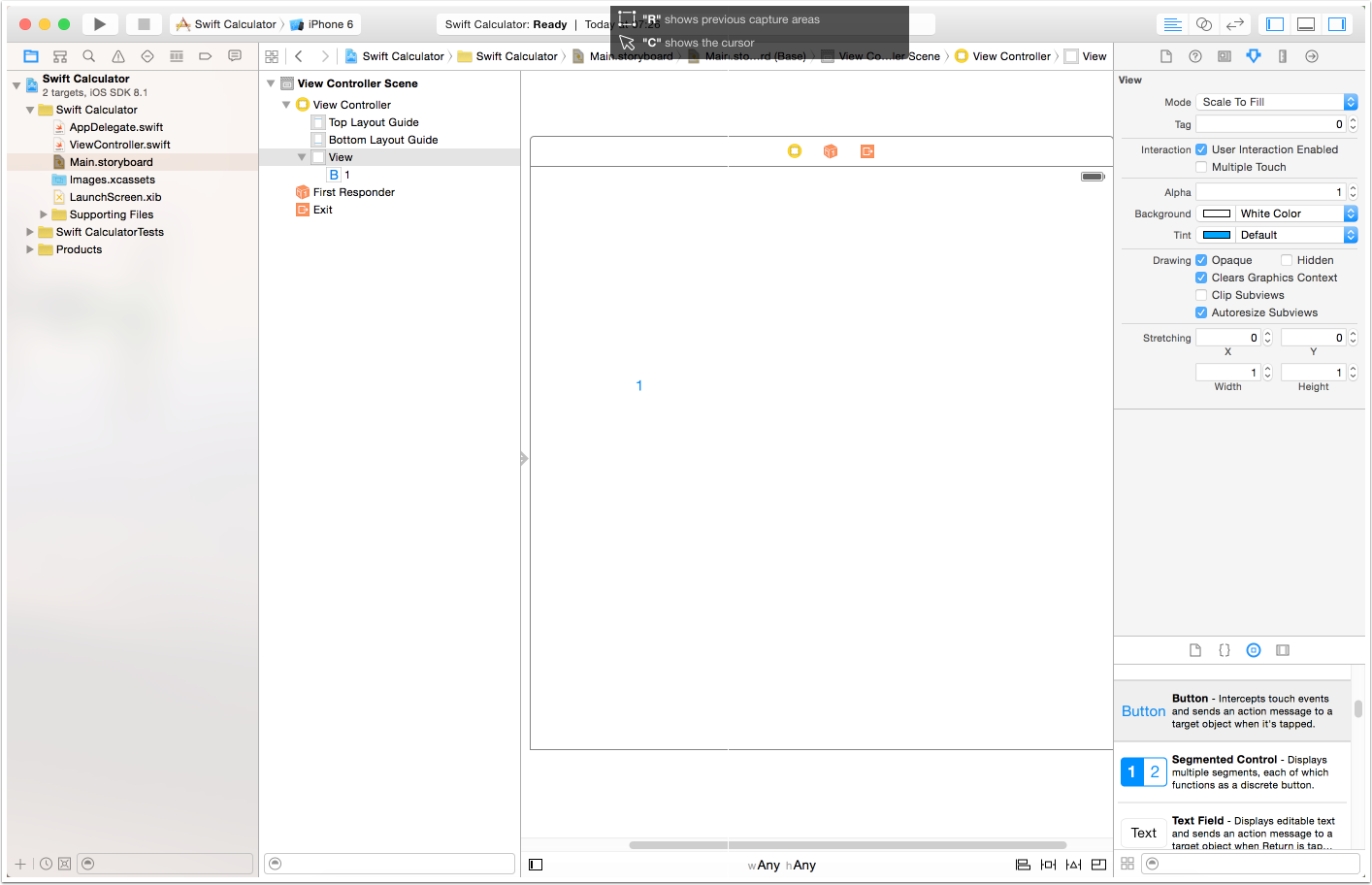
Change the Label
Drag Out more buttons
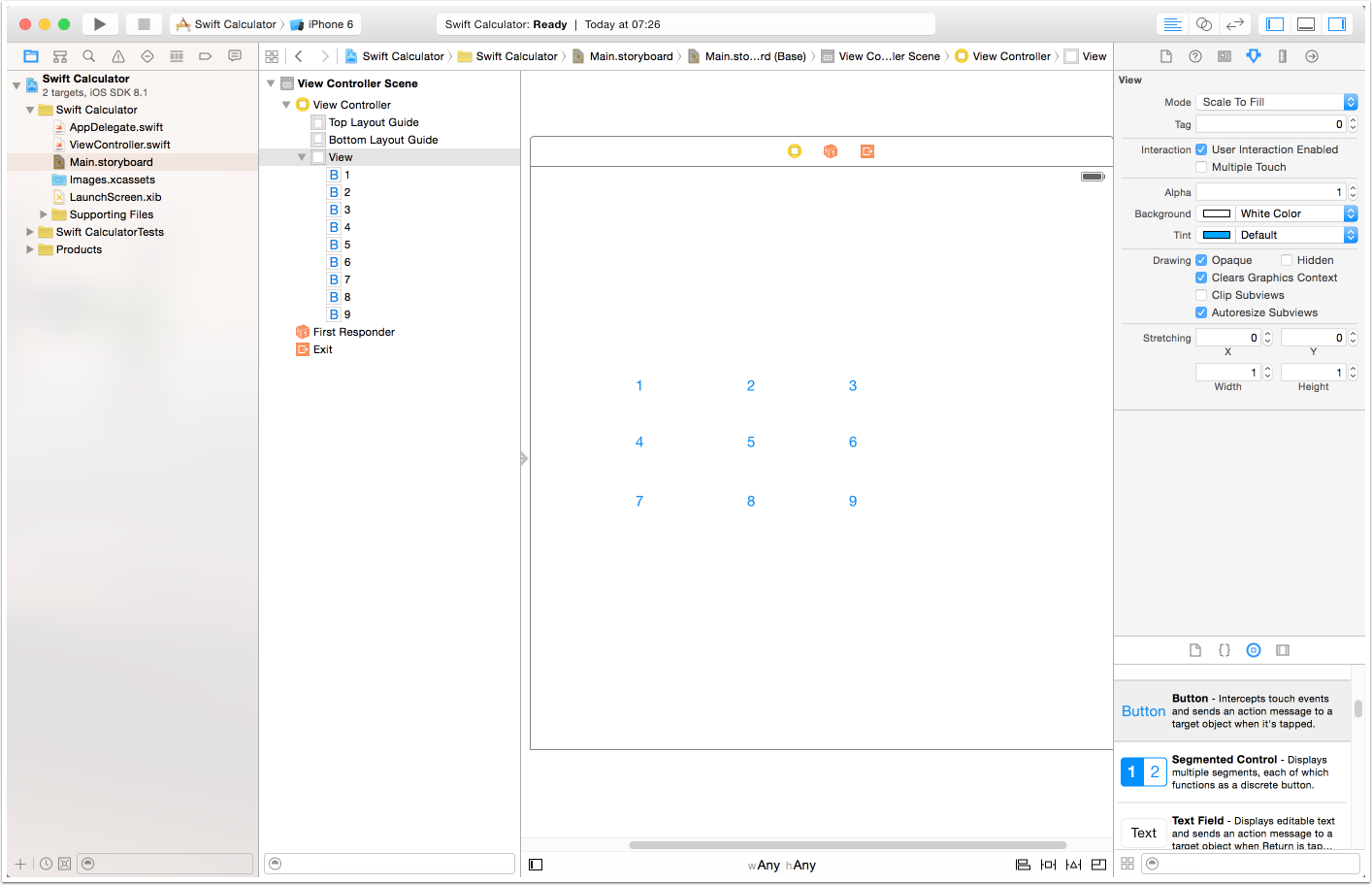
Even More Buttons
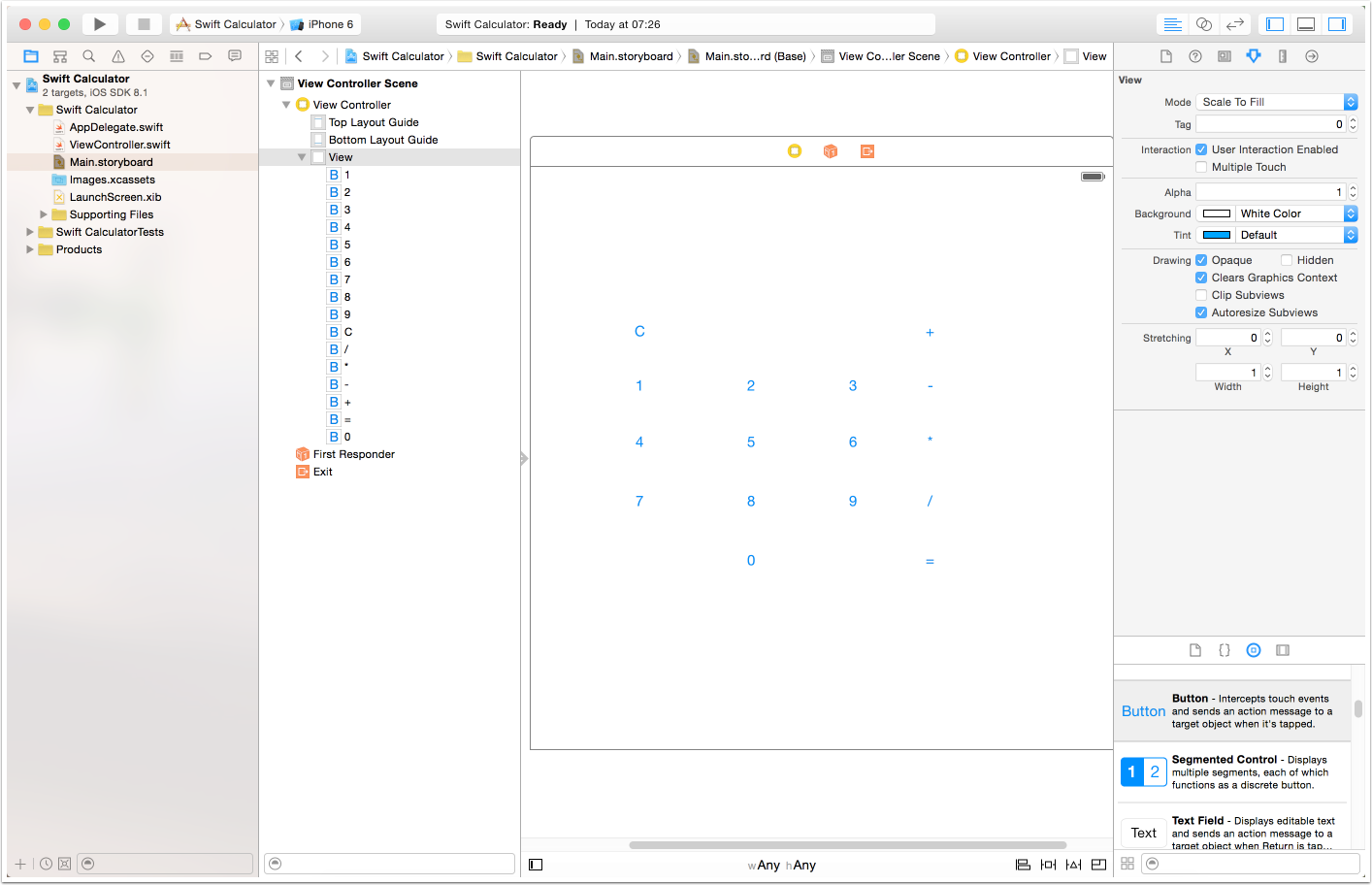
Add a Text Field

Change to Assistant View

Create clearCalculations
Control Click and Drag from the Clear button (C) to the ViewController.swift and set up an Action called "clearCalculations".

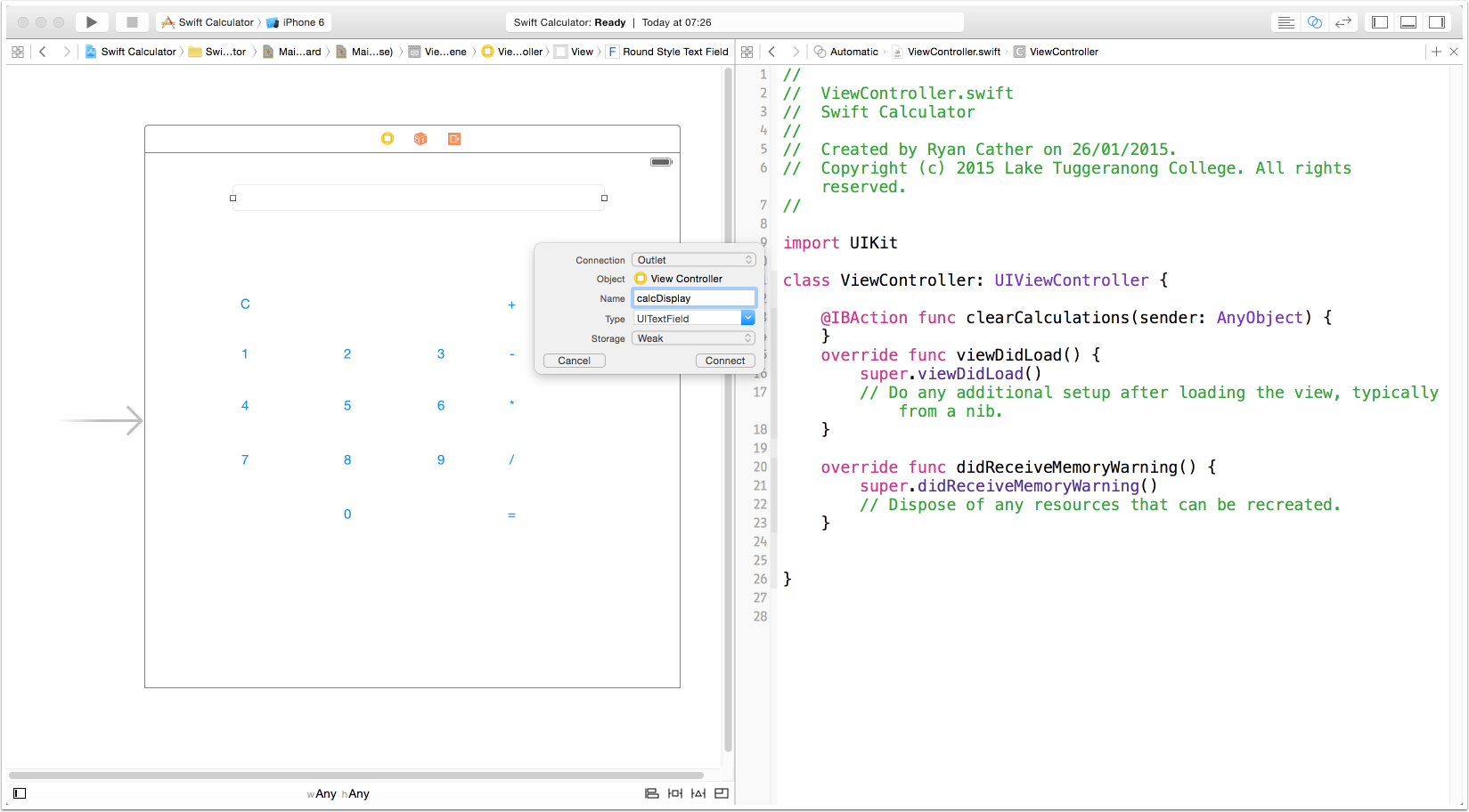
Create calcDisplay outlet
Control Click & Drag from the text field to ViewController.swift and create and outlet called "calcDisplay"
Create Remaining Actions
Create actions for each of the remaining buttons. Call each action "press