3. Java Code
Now that the UI has been completed, it is time to write the brains behind the app - the code.
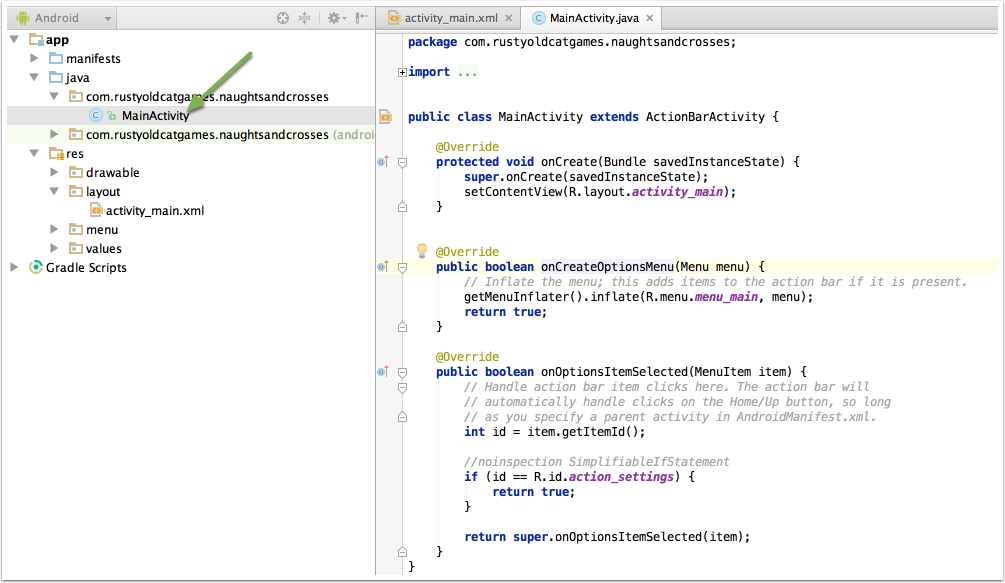
Under the Java folder, open the MainActivity java file.
Note that the folder under which the MainActivity java file appears may be named differently - its based on the Company Domain that you entered when creating the project. Same goes for the package name on the right hand side.
3.1 Define necessary methods
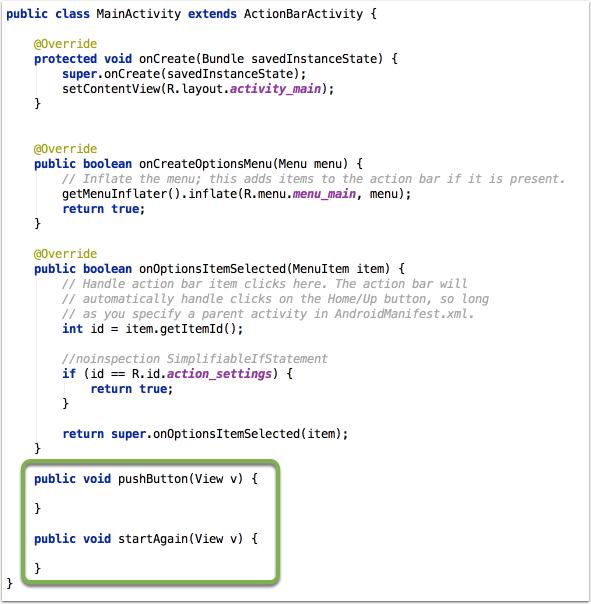
In the XML file, =the buttons included an onClick attribute which indicates which methods to run if the user taps those buttons. You defined the following methods in onClick attributes:
 pushButton()
 startAgain()
Create these methods, adding in a View argument for both methods. Without the View argument, the app will crash when the user taps the button.
3.2 Define Buttons and TextView in code
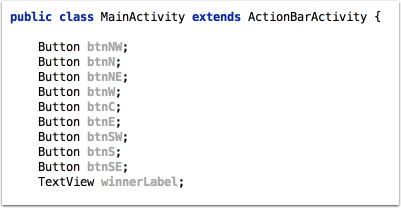
Even though you've create all the UI elements in the XML file, your java code doesn't recognise them. This is due to the Model-View-Controller design pattern - which is beyond the scope of this course but is in effect in this app.
You need to write the code to allow Java to access an manipulate the UI elements. Therefore you need to create a variable for each button and the Text View in code.
Define these as global variables, meaning that they can be accessed by any of the methods rather then just the one they are defined in.
3.3 Associate the variables to the UI
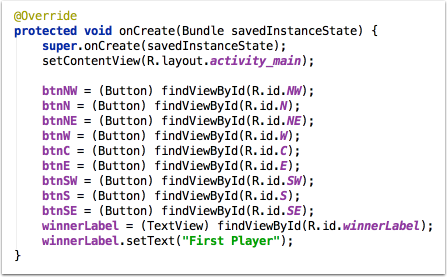
Now that the Button and TextView variables have been created, you now need to write the code to link those variables to the UI elements.
In the onCreate() method use the findViewByID() method to associate the UI Elements to the correct variables.
In the last line of the code, you'll notice that the winnerLabel's text is overriden to display "First Player".
3.4 Tracking Variables
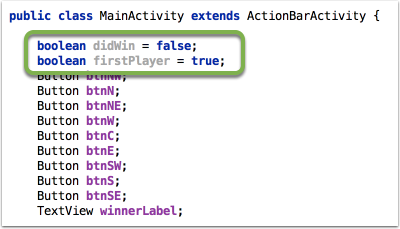
Throughout the life of each game of Naughts and Crosses, there are two aspects that your app will need to keep track of. The first is whose turn it is, and the second is whether someone has won the game or not. You'll need to define two global boolean variables to keep track of these:
 didWin
 firstPlayer
The first variable will be initially set to false and will remain as such until a winning condition is met. If didWin is false, then the user will be allowed to make a selection of the position to play, and if it is true, then buttons will be disabled - so you can't keep playing the game after someone has won.
firstPlayer will start as true but will change to false once the first player has had their turn. It will change back to true when the second player has selected a position. Each turn, the variable will flip between true and false. This will be useful when determining which letter to appear on each button - X or O - and who wins the game.
3.5 Detecting which button is pushed
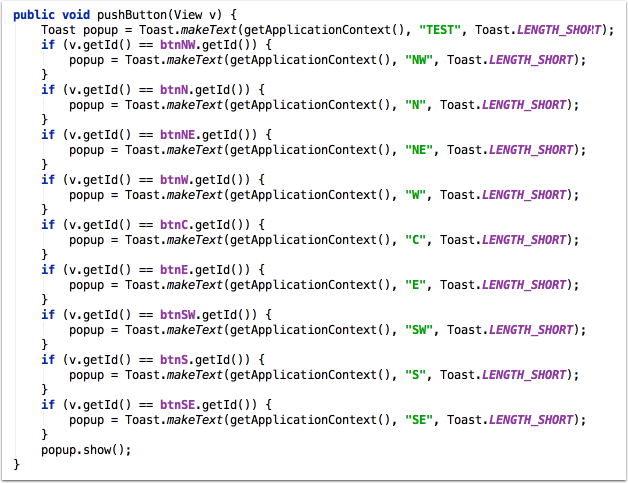
One of the main issues in the app is detecting which button is pushed and running code based on that button. There are a number of different approaches to this problem - for instance you could have set up different methods for each button. In this tutorial, however, a single method has been written - pushButton() - which will detect which button is pressed and run the appropriate code.
To start with, set up a Toast variable in your pushButton() method which will be used to show the name of the button in a popup.

3.6 Test the popup
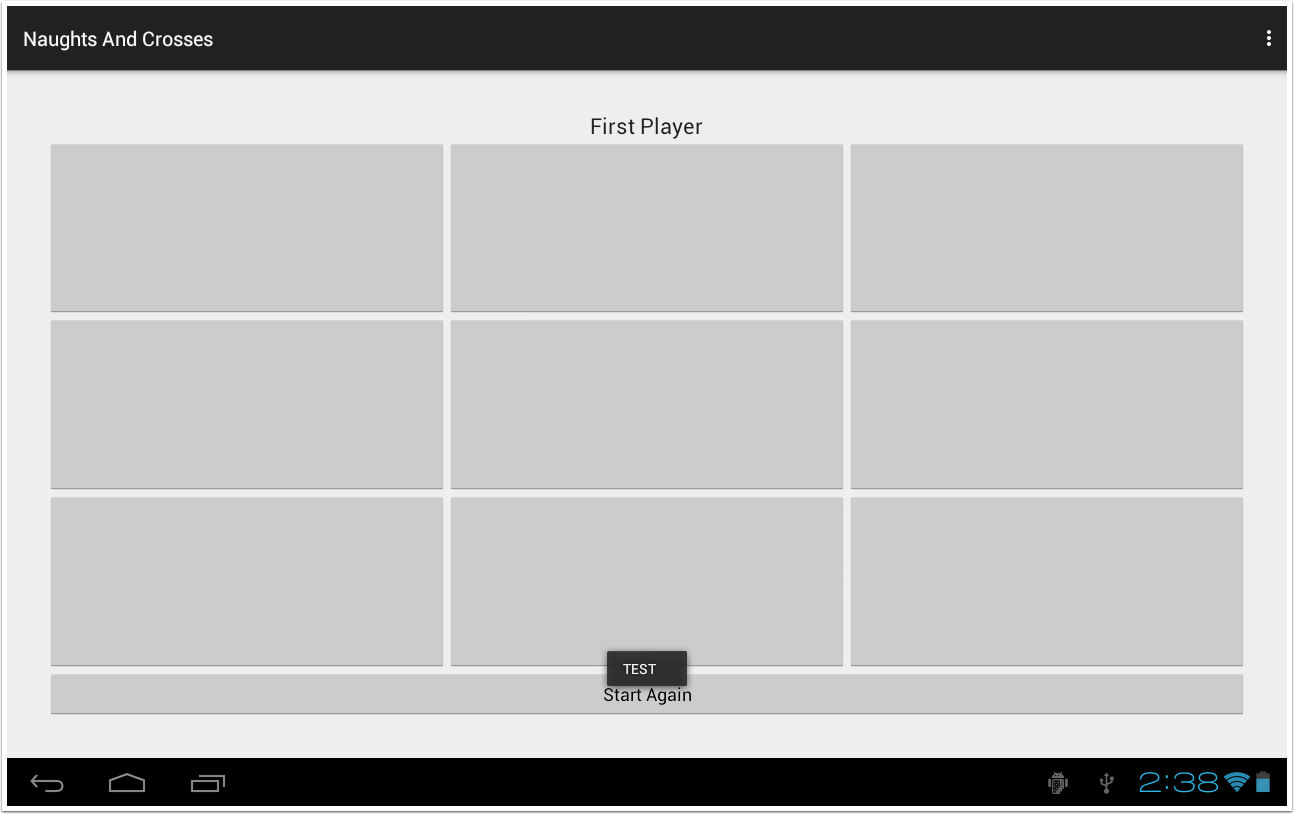
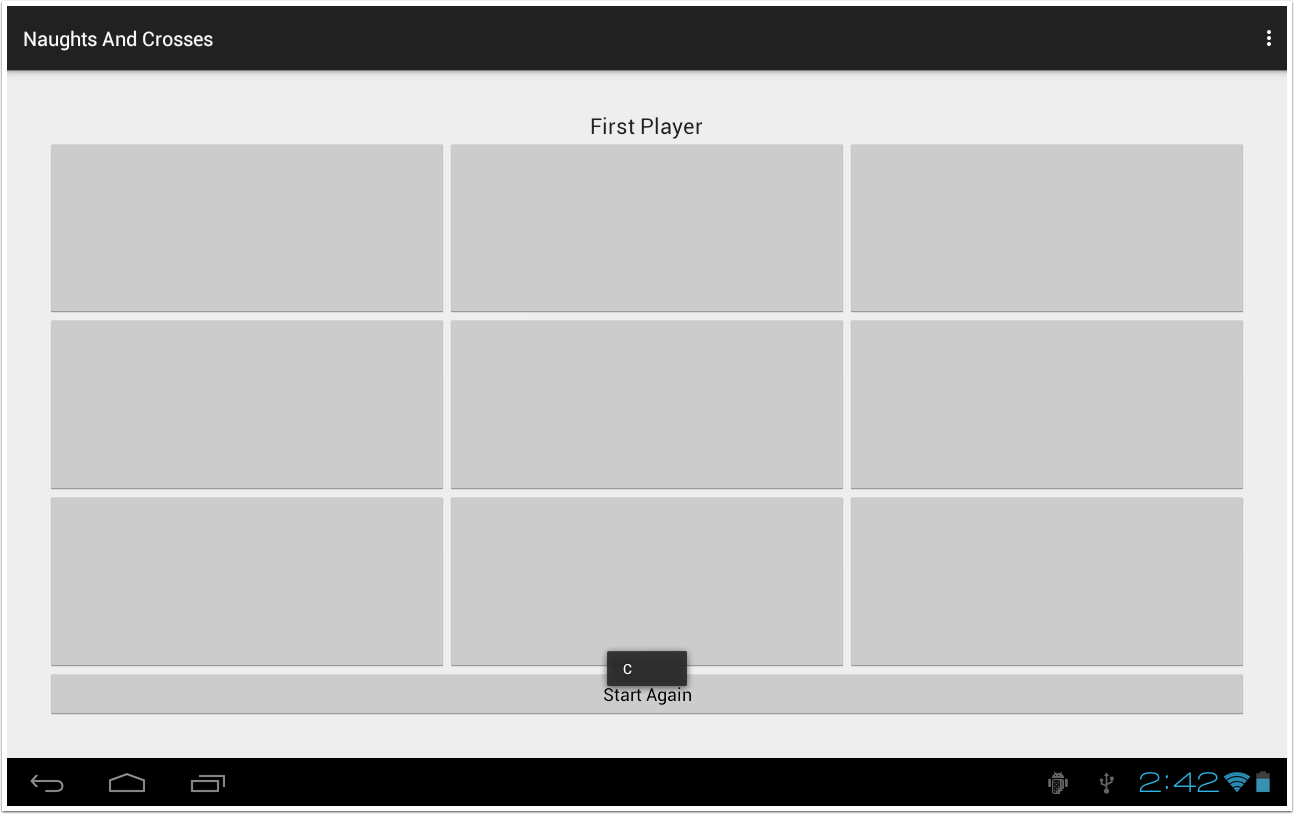
If you run the app now and touch any of the buttons (except for the restart button) then a popup will be displayed saying "Test".
But this is not entirely useful (although incredibly cool). The next step describes how to expand on that.
3.7 Detect which button is pressed
Expand the pushButton() method to display the popup with the button name.
3.8 Test the app again
Run the app again and test it by pressing all the buttons to make sure the popup displays the correct button.
3.9 Make it more useful!
Popups are exciting, but that doesn't assist in playing a game of Naughts and Crosses. However, the structure of the IF statements will be useful as it sets up what can be done for each button.
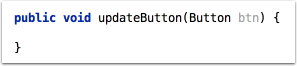
To start with, define a common method to perform the functions to each button when it's pressed. This will save you copying the code for each button.
Using an argument of type Button allows you to pass the specific button to the method to access.
3.10 Write the updateButton() method
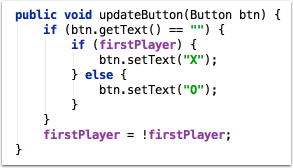
The basic logic of this method is:
If the button text is blank (i.e. the button hasn't been selected already) set the text to be either X or O depending on which players turn it is. Then set the firstPlayer variable so that it is the other players turn.
Using the common variable btn allows you to write this code once and this will work for each button that is pressed.
3.11 Update pushButton()
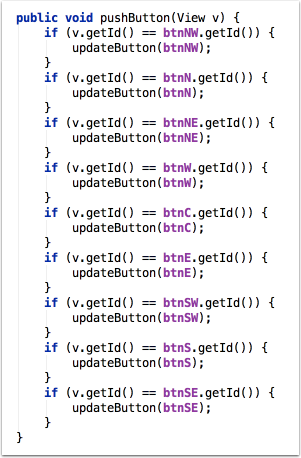
Now that you've written the updateButton() method, call this method after detecting which button is being pressed.
EXTENSION: Clean this method up even more by changing the if statements into one switch statement.
3.12 Did Someone Win?
Now that the buttons are now updating reflecting the players selection, your app now needs to check to see if that player's turn won the game. You will do this in a new method called didSomeoneWin()
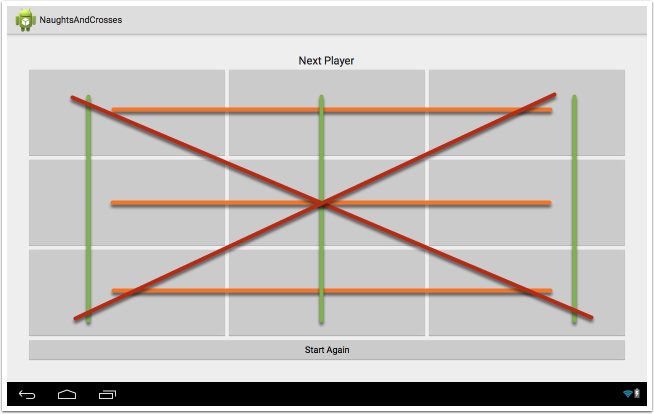
The logic of this code has to test to see if any of the possible winning conditions are met. The following image shows the 8 possible winning conditions for a game of Naughts and Crosses.
3.13 Create the didSomeOneWin() method
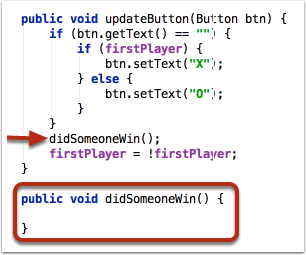
Define the didSomeoneWin() method, which doesn't return anything, and call it from the updateButton() method.
This will ensure that your app will test if someone won before changing player.
3.14 Test for Winning Conditions
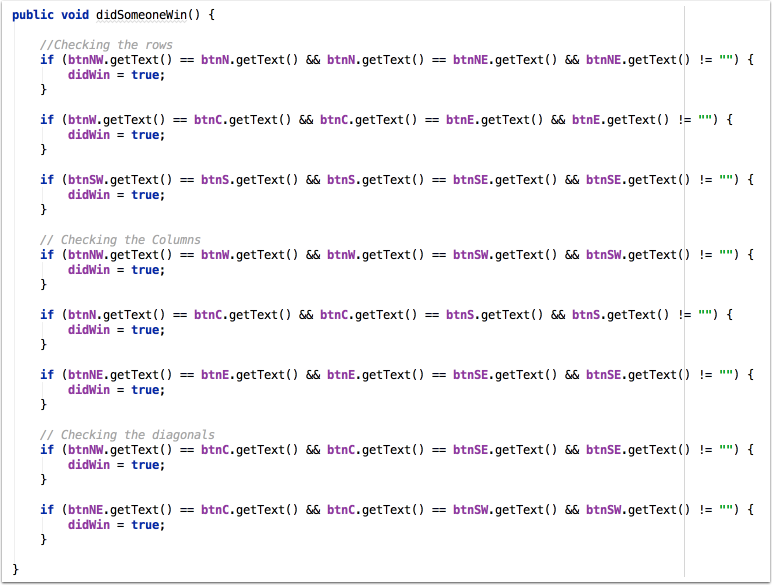
This method needs to check for each of the eight winning conditions for the game. For each condition, the text of the buttons in question is checked against each other to see if they match and that they aren't blank. If they do match, then the didWin variable is set to be true.
3.15 Update the Text View
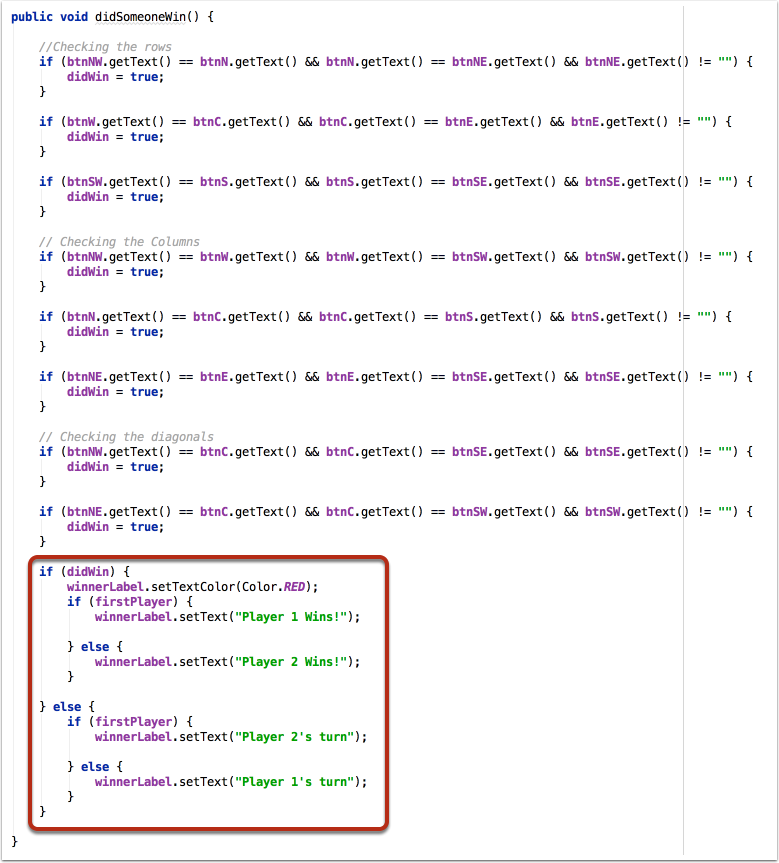
Now that you've discovered whether someone has won or not, you'll need to update the user on the result through the Text View called winningLabel.
If the player has won, then it should display that players success in Red to make it stand out. Otherwise, it should update to say whose turn it is.
3.16 Test the app
Run the app now and it should run, detecting and updating the buttons appropriately in almost all situations.
There are two cases in which the app doesn't work as intended. The first is if the player taps a button that has already been selected, the text doesn't update (as expected) however it still flips the firstPlayer variable.
The second case is that once a player has won, the game still allows players to select buttons. Ideally, you'd want to stop players from updating the buttons upon a winning condition.
3.17 Updating the firstPlayer variable correctly
The first identified bug is if the player taps a button that has already been selected, the text doesn't update (as expected) however it still flips the firstPlayer variable.
To fix this logic error, update the updateButton() method to only change the firstPlayer variable if the button text is equal to "". In other words, the firstPlayer variable only changes if the text of the button changes.
Move the firstPlayer = !firstPlayer code inside the if statement.
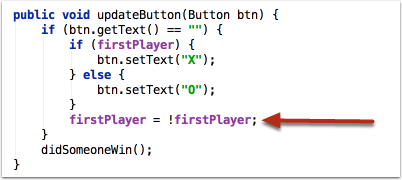
3.18 Stopping the game when a winning condition is met
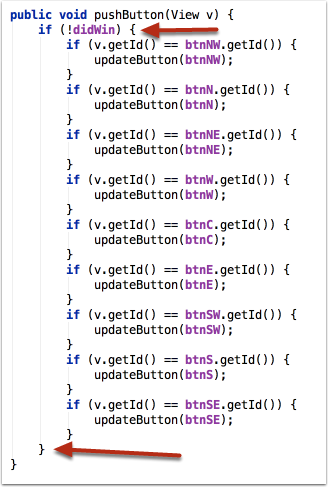
You can use the didWin variable to fix the bug where the game continues even if a winning condition is met.
In the pushButton() method, you can check the status of the didWin variable before running any of the code to update the buttons.
Simply wrap the if statements in another if statement to make sure that didWin is false before running any of the code.
3.19 Test if the bug is fixed
Run the app and test whether the player can continue playing once a winning condition has been met.
Your changes have fixed the bugs, however you've introduced a new bug - the wrong player is announced the winner! This is because the firstPlayer variable is now flipped before checking to see if someone had won.
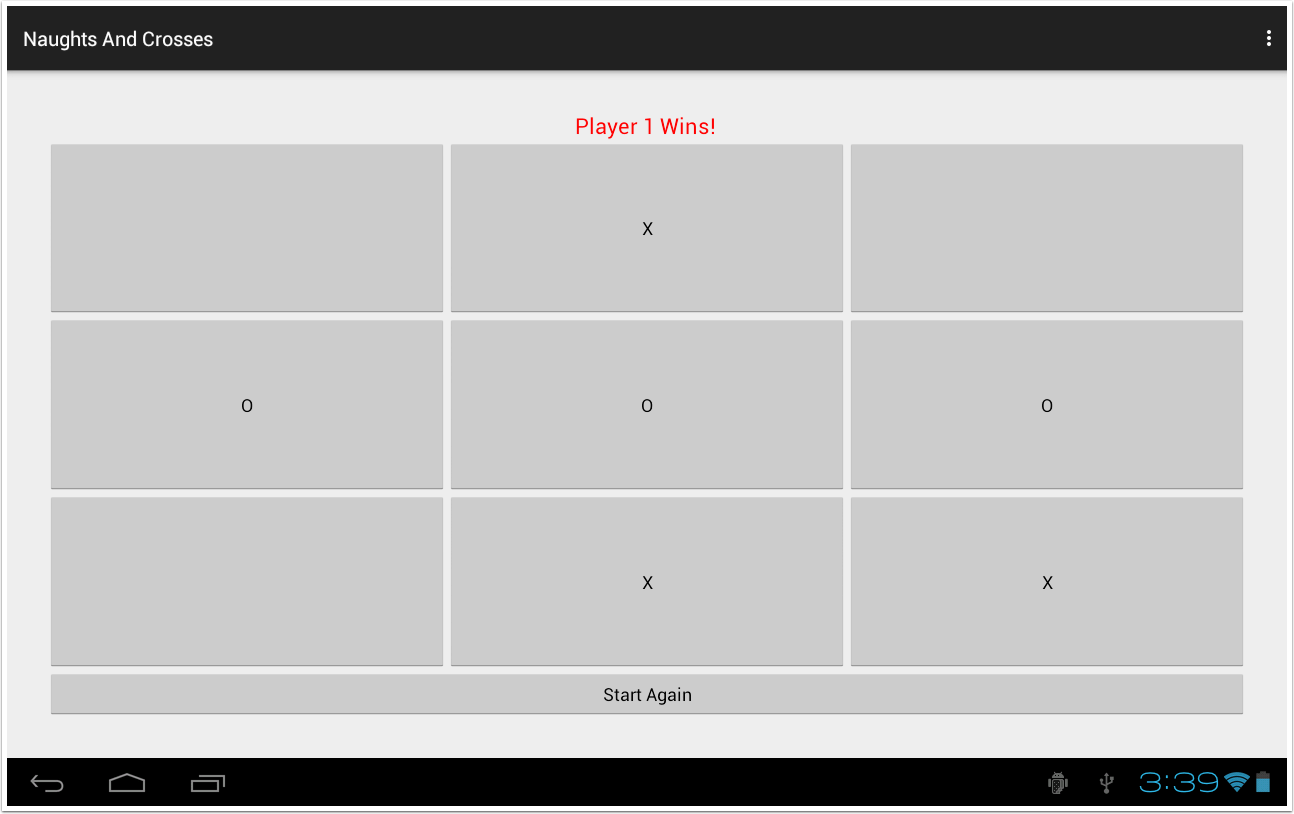
3.20 Announce the correct winner
This is an easy fix. It's a simple matter of changing the outputs in the didSomeoneWin() method.

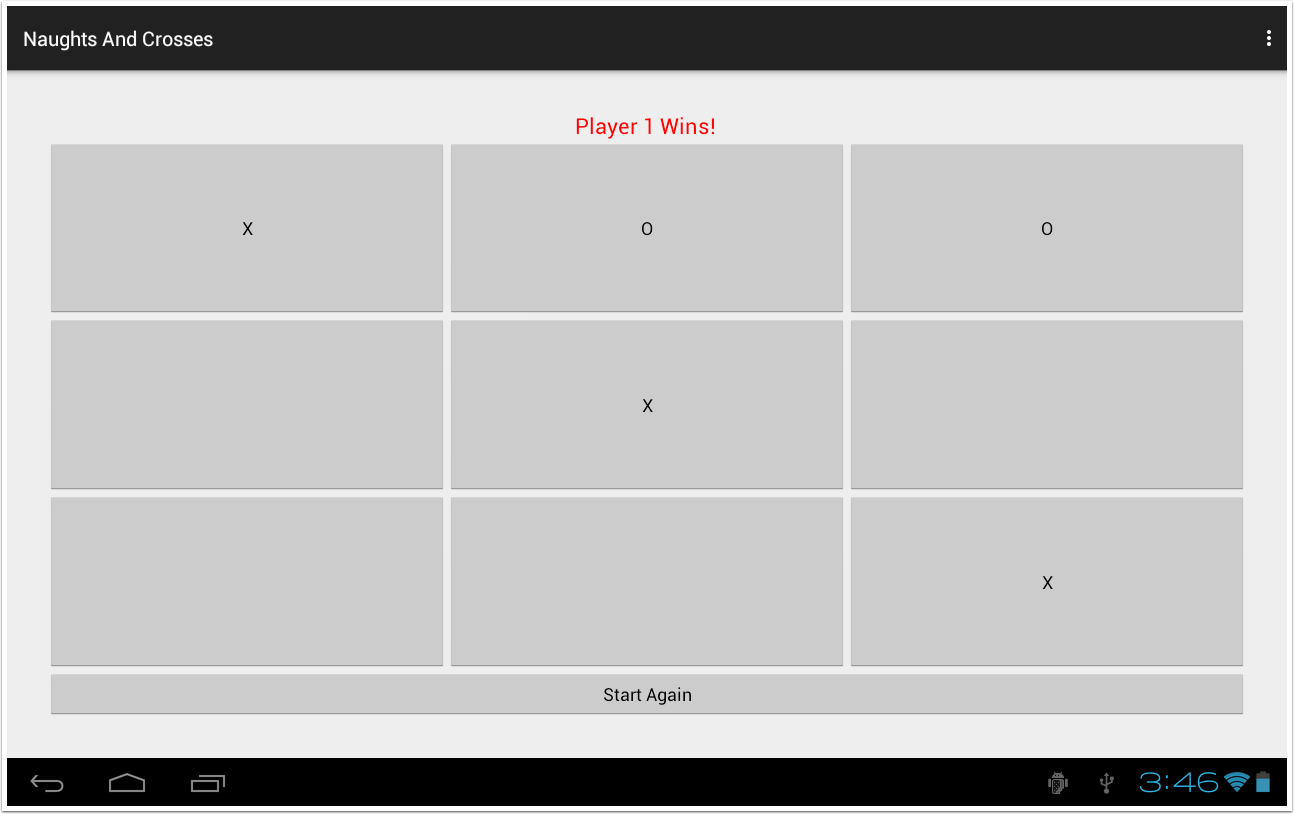
3.21 Test the App again!
This should now have fixed the errors.
3.22 Restarting the game
Now that the game itself is running correctly, detecting winning conditions correctly and updating the user correctly, it's now time to concentrate on the Start Again button.
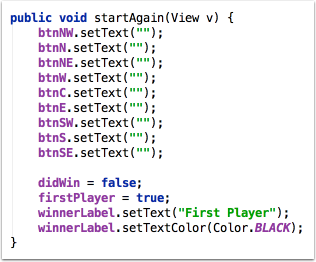
This button, when pressed, runs the startAgain() method which needs to reset all the variables and update the UI back to the initial configuration.
Do this by resetting the text of each button back to "" and setting the variable back to their original values.